Google Drive file sharing is a handy tool that allows you to collaborate with others, share files and allow access to files for team members. It allows users to control who can view, comment on, or edit files, and can be used for team-based access through shared drives or to share files with anyone with a link. However, sometimes there can be issues with file sharing to anyone on the Internet – below we explore the causes and solutions.
“Anyone with a link” Not Working
When sharing a file on Google Drive, you will see three options available:
- “Restricted” – only users with access can open the file with a shared link
- “[Your Company Name]” – anyone within your company organisation can access the file, with options for Viewer, Commenter, or Editor access.
- “Anyone with a link” – anyone on the internet can access the file with a link, with options for Viewer, Commenter, and Editor access.
However, sometimes the “Anyone with a link” option doesn’t appear.
Causes & Solutions
Admin Console Settings
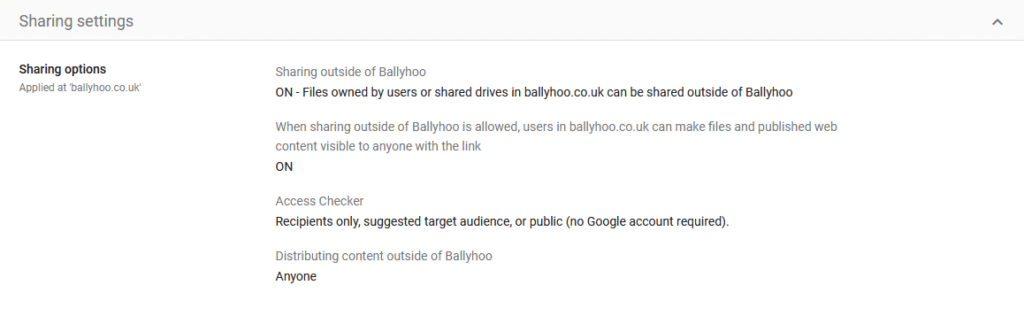
In order for users in an organisation to share files with anyone on the Internet, a specific setting must be turned on in the Google Workspace Admin Console.
You may need to contact your Google Partner/Reseller to ask them to check these settings for you.
Caching
Your web browser saves copies of websites on your device for future visits. However, this can sometimes mean that temporary files conflict with the most current version of a website or app. Therefore, we’d recommend that you:
- Clear your browser’s cache and cookies
- Try a different browser to rule out browser-specific problems
- Log out and log back in to your Google account
Permission to Share
In order to share with “Anyone with a link”, you must have the correct permissions on the file or folder – you must be an “Owner”, “Manager,” “Content Manager,” or “Contributor”. However, you can only control the sharing settings (such as changing a file to “Anyone with a link”) if you are the owner of that folder or file.
Internal Share Settings
People within your organisation can turn off the share settings. To check these, try the following:
On a file
- On a file that you’re currently not able to see sharing settings for, right-click and go to ‘File information’ > ‘Security limitations’ (see screenshot attached)
- A right sidebar will pop-up, check under ‘Security limitations’ that there are no limitations set
On a shared folder
- Right-click on a shared folder
- Select ‘Shared Drive settings’
- The first option needs to be ticked – ‘Allow people outside of [Your Company Name] to access files’ in order to share outside of the organisation
Log in to Owner Account
If you’re still unsure, you can log in to your Owner account and update the sharing settings for the organisation.
Google Workspace Partners
Ballyhoo are a Google Workspace Partner – we can set up, manage and give you support with your Google products. If you’re interested in using Ballyhoo as your Google Reseller, or want more information, call us on 0121 295 5352 or email us at [email protected] to see how we can help.